

10 Linux Commands Every Cybersecurity Professional Must Master
Linux commands for cybersecurity are text based instructions that security professionals type into a terminal to manage systems, investigate threats, and protect networks. Linux powers 96.3% of the world’s top one million web servers according to 2025 data from TecMint, which means most security work happens on Linux systems. Mastering the right commands gives professionals the ability to respond to incidents, analyze logs, and monitor traffic without relying on graphical tools. These ten commands form the foundation that every security career builds on.
What Are the Linux Commands for Cybersecurity That Every Professional Must Master?
The most essential Linux commands for cybersecurity professionals include ls, cd, cat, grep, chmod, chown, ps, netstat, top, and find. These commands cover file management, log analysis, network monitoring, and process detection.
Why These Commands Matter
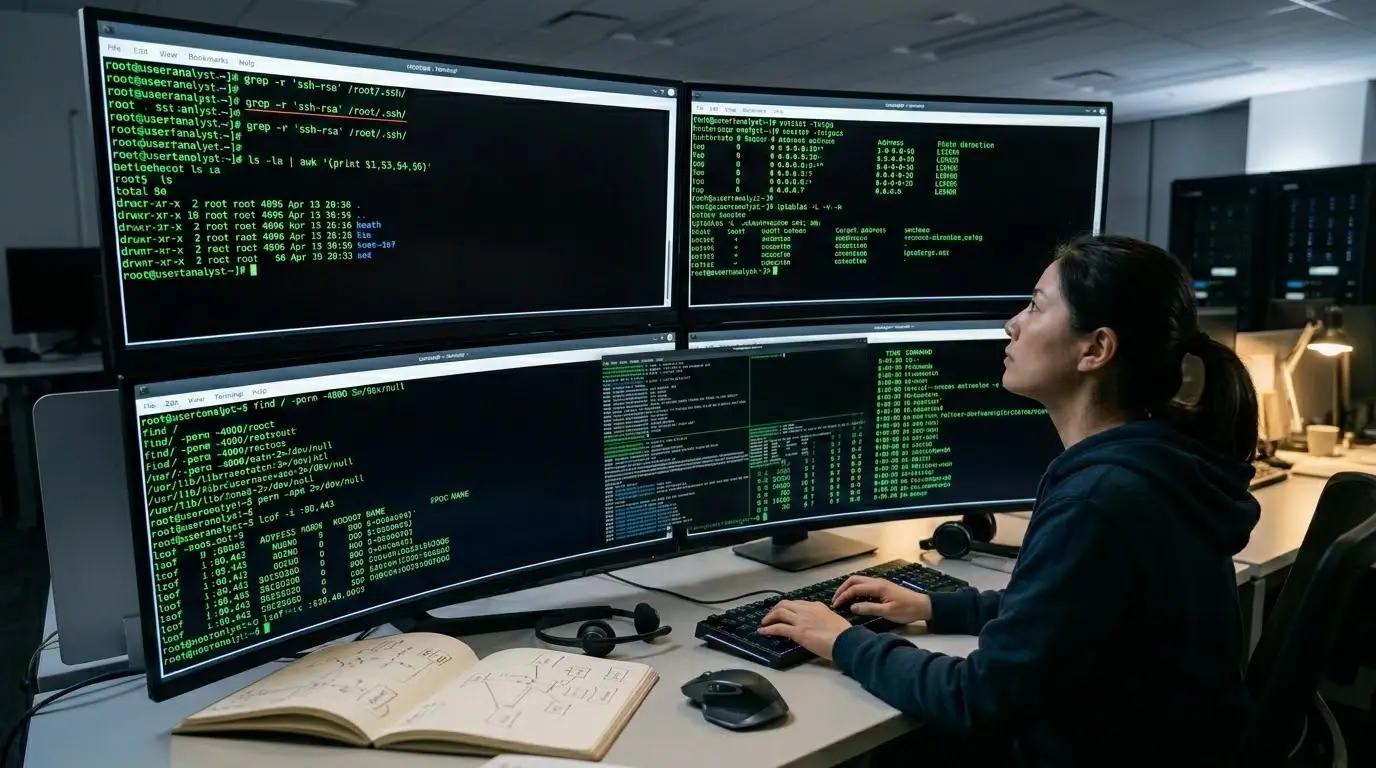
Security professionals use these commands daily to investigate suspicious activity, check system health, and review access controls. According to TryHackMe, commands like grep, netstat, and ps are the first tools professionals reach for during incident response. Knowing them well speeds up threat detection and reduces response time.
How Professionals Use Them
These commands help security teams analyze server logs, monitor active connections, track running processes, and find hidden files. The CompTIA cybersecurity certification path includes Linux command proficiency as a core requirement. Employers expect candidates to know these basics before their first day on the job.
-
ls Command for Listing Files and Directories
The ls command displays all files and directories in a given location, helping security professionals spot unusual or hidden files on a system.
The ls command is the most basic tool for exploring what exists on a system. Security teams use it with flags like ls -la to reveal hidden files that start with a dot. Attackers often hide tools or scripts in plain sight using dot prefix names, and ls -la exposes them immediately. Running ls -R provides a recursive view of every file within a folder structure.
-
cd Command for Navigating Directories
The cd command moves between directories, allowing security professionals to quickly access log folders, configuration files, and target locations.
Moving through directories fast is essential during incident response. The cd command lets professionals jump into folders like /var/log to review system logs or /etc to check configuration files. Using cd with shortcuts like cd .. to move up one level and cd / to reach the root directory saves valuable time during an investigation.
-
cat Command for Viewing File Content
The cat command displays the full content of a file directly in the terminal, making it useful for reading configuration files and log entries.
Security analysts use cat to quickly read small files like password configurations, SSH keys, and short log excerpts. For larger files, cat can be combined with other commands using pipes to filter results. For example, cat /var/log/auth.log shows every authentication event on the system, which helps detect brute force login attempts.
-
grep Command for Searching Patterns
The grep command searches for specific words or patterns within files, making it one of the most powerful tools for filtering logs and detecting suspicious activity.
Grep stands for globally searching a regular expression and print. Security professionals rely on grep to search through massive log files for IP addresses, error messages, or usernames linked to an attack. Adding flags like grep -i for case insensitive search or grep -r for recursive search through all files in a directory increases its usefulness during investigations.
-
chmod Command for Changing Permissions
The chmod command modifies file and directory permissions, controlling who can read, write, or execute files on a system.
File permissions are a critical part of system security. The chmod command uses numeric codes like 755 for full owner access or 644 for read only access by others. Security professionals use chmod to lock down sensitive files, restrict script execution, and fix permissions that attackers may have altered during a breach. Misconfigured permissions are one of the most common entry points for attackers.
-
chown Command for Changing Ownership
The chown command changes the ownership of files or directories, ensuring the correct users and groups have proper access rights.
When files end up owned by the wrong user or group, it creates security gaps. Attackers who gain elevated access often change file ownership to maintain persistence on a system. The chown command lets security teams restore correct ownership and audit who owns what across critical directories like /etc and /var/log.
-
ps Command for Viewing Running Processes
The ps command shows all active processes on a system, helping security professionals detect unusual or malicious programs that should not be running.
The ps command gives a snapshot of every process running at a given moment. Adding ps aux shows all processes from every user with full details. Security teams compare process lists against known baselines to spot malware, cryptominers, or unauthorized services. A process running from an unusual location like /tmp is often a sign of compromise.
-
netstat Command for Network Monitoring
The netstat command displays active network connections and listening ports, allowing security professionals to detect unauthorized access and suspicious traffic.
Network monitoring is a core security skill, and netstat provides a clear view of every connection a system has open. Running netstat -an shows all active connections with numeric addresses, making it easy to spot unfamiliar IP addresses or unusual ports. TryHackMe lists netstat alongside ip, curl, and dig as essential Linux networking commands for analyzing connections and understanding attacker movement.
-
top Command for Real-Time System Monitoring
The top command displays live system performance data including CPU usage, memory consumption, and active processes for real-time monitoring.
When a system slows down or behaves strangely, top is the first tool to check. It refreshes automatically every few seconds and highlights the processes using the most resources. Security professionals watch top to catch cryptominers consuming CPU, memory leaks from malware, or spikes in resource usage that indicate an attack is underway.
-
find Command for Searching Files
The find command locates files and directories across the entire system based on name, size, date, or permissions.
The find command performs deep system scans that reach every corner of the file system. Security teams use it to locate files modified in the last 24 hours with find / -mtime -1, find files with specific permissions, or hunt for files by name. This makes it invaluable for tracking down attacker tools, stolen data, or backdoors hidden deep in directory structures.
Key Takeaways
– Linux powers 96.3% of the top one million web servers, making Linux skills essential
– grep and cat are the most used commands for log analysis during incident response
– chmod and chown protect systems by controlling file access and ownership
– ps and top help detect malicious processes running on compromised systems
– netstat reveals active network connections and suspicious traffic
– find performs deep system scans to locate hidden files and attacker tools
– Mastering these ten commands provides a strong foundation for any cybersecurity role
